
Saving Personal Email
How to Download Gmail Emails to Computer as EML File
You can easily download a single Gmail email in the web browser. This option is preferable for users who simply wish to save a few important emails and have no need for bulk backup.
The latest steps to save a single email in Gmail are:
- Log in to your Gmail account and open the email message that you want to save to your computer.
- Then, click on the three dots icon and select the Download message option.
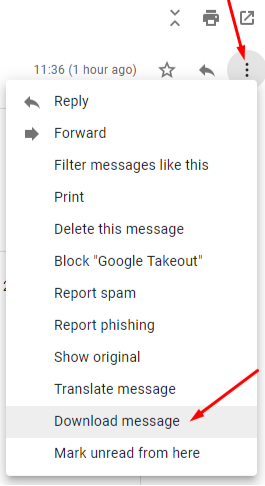
- It will download the message as an EML file.
You can repeat the steps for each Gmail message that you want to save.
Download/Save Emails as a PDF File
Gmail also provides an option to export Gmail emails to PDF format. A PDF document maintains its formatting and structure on all Operating systems. It is also presentable for legal purposes. So, many users often save emails as PDFs.
The native option for learning how to download emails from Gmail in bulk to a computer in this format is described below:
- First, open the Gmail email that you want to save.
- After that, click on the Print all icon (right-side).

- The, select the Save as PDF option in the dropdown menu.
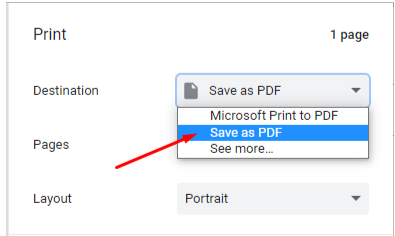
- At last, click on the save button to download the file.
Saving or printing emails from university email accounts should only be done for personal data. The data within any university mailbox is subject to policies published in the Records Information Management (RIM) program. Any data that is subject to these regulations needs to be retained in the university-provided email account.